
Notice
Recent Posts
Recent Comments
Link
| 일 | 월 | 화 | 수 | 목 | 금 | 토 |
|---|---|---|---|---|---|---|
| 1 | 2 | 3 | 4 | |||
| 5 | 6 | 7 | 8 | 9 | 10 | 11 |
| 12 | 13 | 14 | 15 | 16 | 17 | 18 |
| 19 | 20 | 21 | 22 | 23 | 24 | 25 |
| 26 | 27 | 28 | 29 | 30 |
Tags
- 주피터
- 깊은복사
- OOP
- list comprehension
- 상속
- 스택
- 백준
- 연산자오버로딩
- 프로그래머스lv2
- 참조자
- C++
- 인프런
- 코드잇
- 멤버함수로구현
- 기본클래스
- 11382번
- 점프투파이썬
- 데이터사이언스
- 포인터
- python
- 다형성
- c++코딩테스트합격자되기
- STL
- 제네릭프로그래밍
- 코딩테스트
- 얕은복사
- 람다식
- OpenCV
- 유도클래스
- 동적바인딩
Archives
- Today
- Total
WjExplor Story
그래프 사이즈 조절하기 본문
import numpy as np
import matplotlib.pyplot as plt

height_array = np.array([
    165, 164, 155, 151, 157, 162, 155, 157, 165, 162,
    165, 167, 167, 183, 180, 184, 177, 178, 175, 181,
    172, 173, 169, 172, 177, 178, 185, 186, 190, 187
])

weight_array = np.array([
    62, 59, 57, 55, 60, 58, 51, 56, 68, 64,
    57, 58, 64, 79, 73, 76, 61, 65, 83, 80,
    67, 82, 88, 62, 61, 79, 81, 68, 83, 80
])
산점도를 그려보자. 그래프의 크기를 기본적으로 인치 단위로 표현한다. 따로 설정하지 않으면 가로 6인치, 세로 4인치 크기 그래프가 나온다.
plt.scatter(height_array, weight_array)
plt.title('Height and Weight')
plt.xlabel('Height (cm)')
plt.ylabel('Weight (kg)')
plt.show()
다른 크기의 그래프를 원할 때에는 pyplot의 figure() 함수를 호출해서 그래프의 크기를 변경하면 된다. 이 방법은 그래프 하나하나의 크기를 설정할 때 사용한다. 이번에만 적용되고 다음 그래프 그릴 때에는 다시 기본값 (가로 6인치, 세로 4인치)로 초기화 된다.
plt.figure(figsize=(10, 4))
plt.scatter(height_array, weight_array)
plt.title('Height and Weight')
plt.xlabel('Height (cm)')
plt.ylabel('Weight (kg)')
plt.show()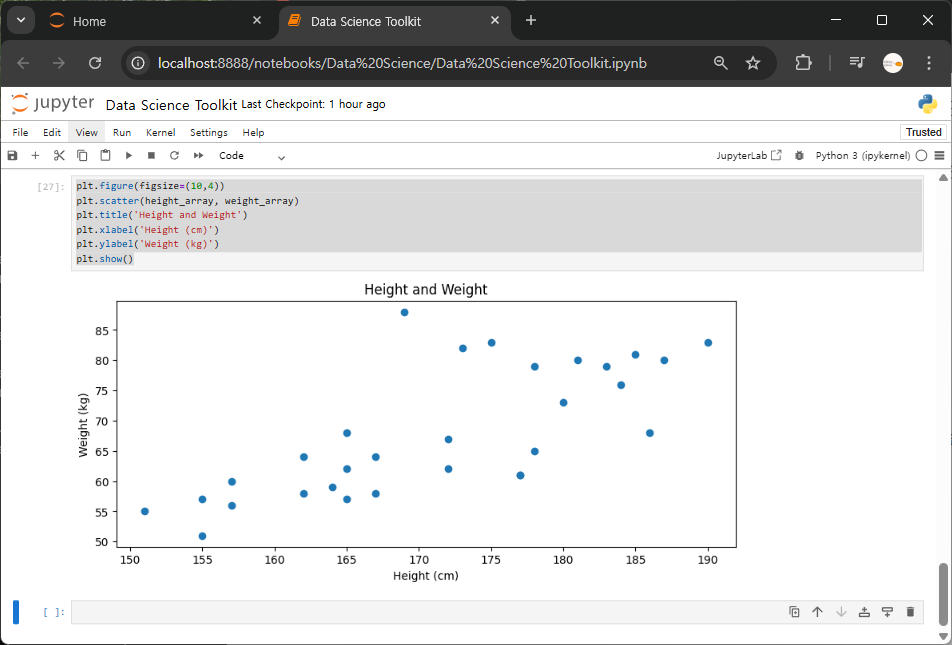
전체적으로 그래프 크기를 통일하고 싶은 경우 pyplot 의 rcParams 속성에서 직접 접근해서 그래프 사이즈의 기본 설정을 변경할 수 있다.
앞으로 같은 노트북 파일 안에서 그래프를 그리면 따로 설명을 바꿔주지 않는 한 계속 가로 5인치, 세로 5인치 크기의 그래프가 나온다.
plt.rcParams['figure.figsize'] = (5, 5)
plt.scatter(height_array, weight_array)
plt.title('Scatter Plot')
plt.xlabel('X Label')
plt.ylabel('Y Label')
plt.show()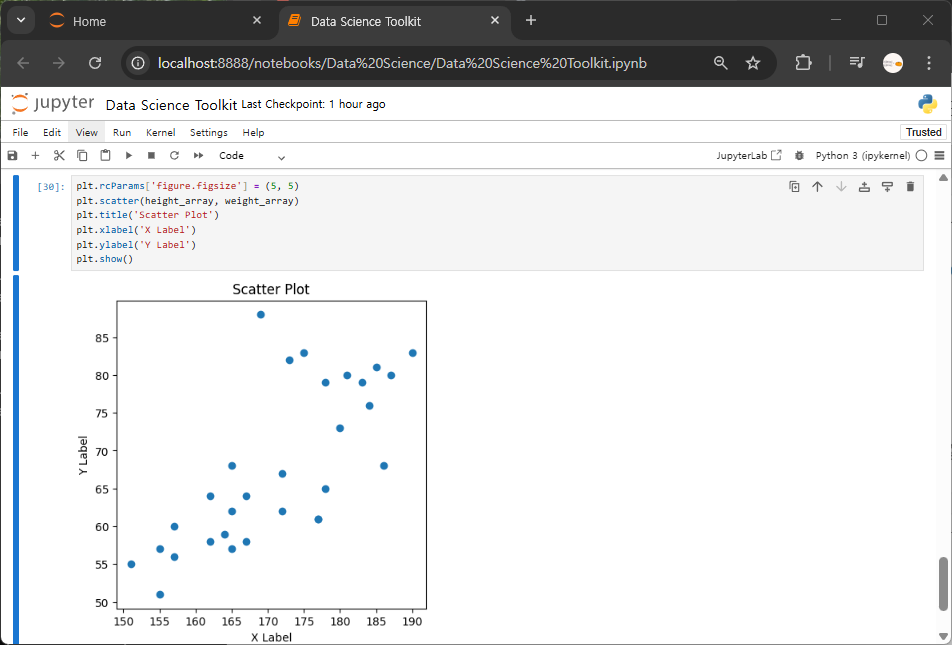
'Python > Python : Jupyter' 카테고리의 다른 글
| 그래프에 한글로 된 텍스트 넣기 (0) | 2025.09.24 |
|---|---|
| 연봉 데이터 시각화_Jupyter (0) | 2025.09.23 |
| 다양한 그래프 그려보기 (0) | 2025.09.23 |
| 짝수만 추출하기_Jupyter (0) | 2025.09.23 |
| Window Jupyter 시작하기 (0) | 2025.09.23 |